

The hard part of a ClickUp PRD is not the writing — it is keeping the document honest after the work starts. A PRD in a separate Google Doc goes stale the moment engineering opens the first ticket: the doc says one thing, the board says another, and by mid-sprint nobody trusts either. Writing the PRD inside ClickUp Docs, next to the tasks it describes, is how you stop that drift. This is the practical how-to for the tool.
One boundary first, so you are in the right place: this guide is about where and how to run the PRD in ClickUp. For what to actually put in one — the one-page structure, the prompts, the failure modes — read How to Write a PRD with AI. Here I assume you know the shape of a good PRD and want it living in your workspace.
Disclosure: some links below are affiliate links. If you start a paid ClickUp plan through them, VetAI Works may earn a commission at no extra cost to you. I only recommend tools I would set up myself.
ClickUp Docs is on the free-forever plan — you can build the whole PRD workflow below before paying for anything.
Try ClickUp free →Why keep the PRD in ClickUp Docs
The whole argument is proximity. When the PRD lives in the same space as the backlog, three things stop happening: you stop copy-pasting requirements into tickets by hand, you stop maintaining two versions of the truth, and reviewers stop asking “is this still current?” A ClickUp Doc can reference the exact tasks that implement each requirement, and those references show live status — so the document reads the board instead of drifting away from it.
If your team already runs delivery in ClickUp — see ClickUp for Product Managers for the full workflow — then the PRD belonging anywhere else is just friction you are choosing to keep. Side by side, the difference is not the writing surface; it is what the document is connected to.
| PRD in Google Docs | PRD in ClickUp Docs | |
|---|---|---|
| Link to the work | Manual paste of ticket URLs | Live task chips with real-time status |
| Source of truth | Doc and board drift apart | One workspace, one version |
| Draft help | Copy context into a chatbot | ClickUp Brain reads it in place |
| Reviewer effort | Cross-check doc against board | Status is visible inline |
Set up the doc
Create the Doc inside the space the feature belongs to (Docs → New Doc, from the space sidebar), not in your private area — that is what lets tasks and the doc see each other. Title it for the feature, e.g. Checkout v2 — PRD. Then use the / menu to add Heading blocks for each PRD section: Problem, Goal & non-goals, Users & jobs, Proposed solution, Requirements, Success metrics, Risks & open questions. Headings auto-populate the right-hand table of contents, so a long PRD stays scannable.
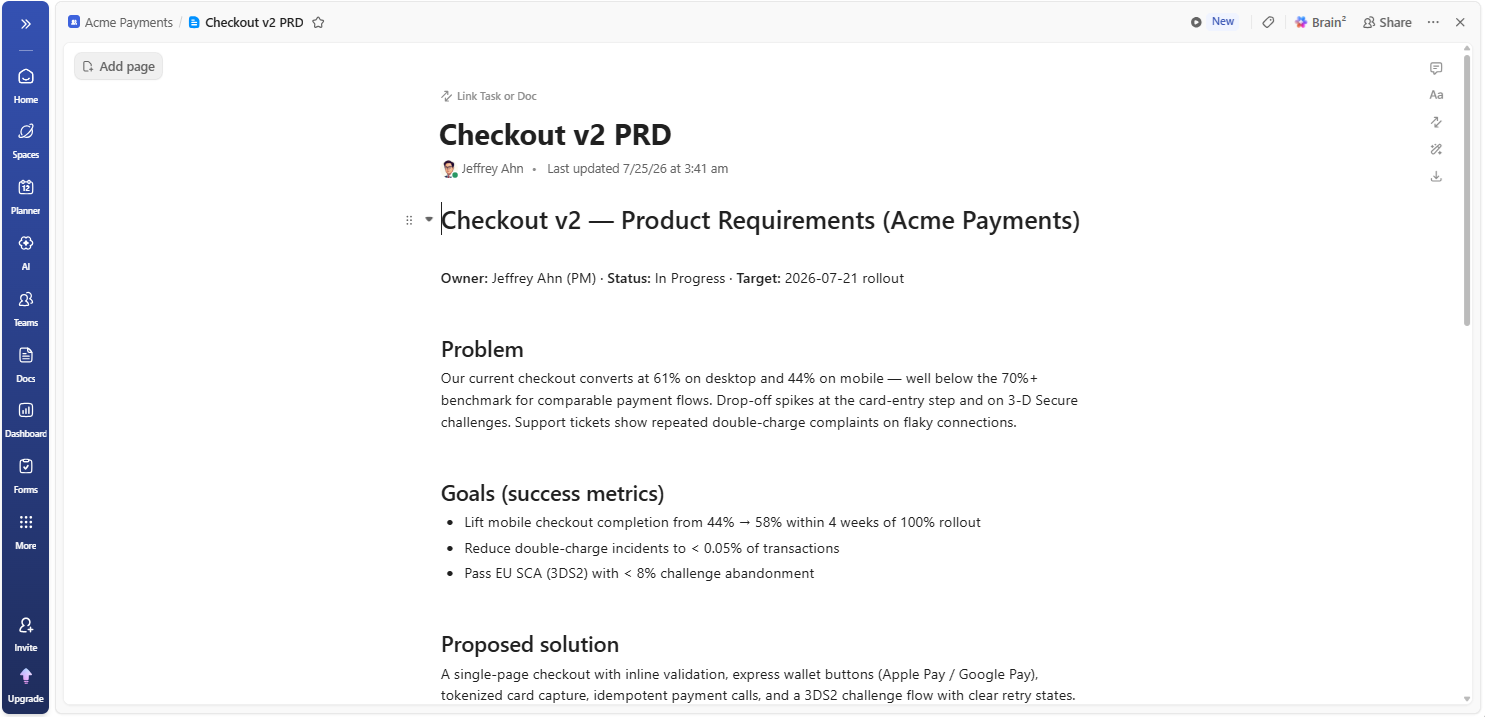
Two setup choices that save you later: for a large feature, break sub-areas into subpages (a nested page per epic) instead of one endless scroll; and once the layout works, save it as a Doc template so the next PRD starts pre-structured. You do not need ClickUp’s built-in PRD template — a blank doc plus your own headings is cleaner and matches the one-page discipline.
If you want a skeleton to paste as heading blocks and fill in, this is the one I use — each line becomes an H2 in the Doc:
Problem              — the user pain, in their words, one paragraph
Goal & non-goals     — what we will and won't do this cycle
Users & jobs         — who it's for and the job they're hiring it for
Proposed solution    — the approach, with /task links to the epics
Requirements         — must / should / could, each linked to its task
Success metrics      — the one number that proves it worked
Risks & open questions — flagged, owned, and dated
Keep each section to a few lines. If a requirement needs a page of explanation, it is usually two requirements. For the reasoning behind this structure — why non-goals matter as much as goals, and how to phrase a testable requirement — the PRD-with-AI guide goes deep; here the point is just to get it laid out in ClickUp fast.
Link tasks so the spec stays live
This is the step that makes a ClickUp PRD worth the move. Under each requirement, type /task and choose Mention a Task to embed the ticket that implements it. The mention renders as a live chip carrying the task’s real-time status, assignee, and due date — so when engineering flips a task to In Progress or Complete, the PRD reflects it without anyone editing the document.
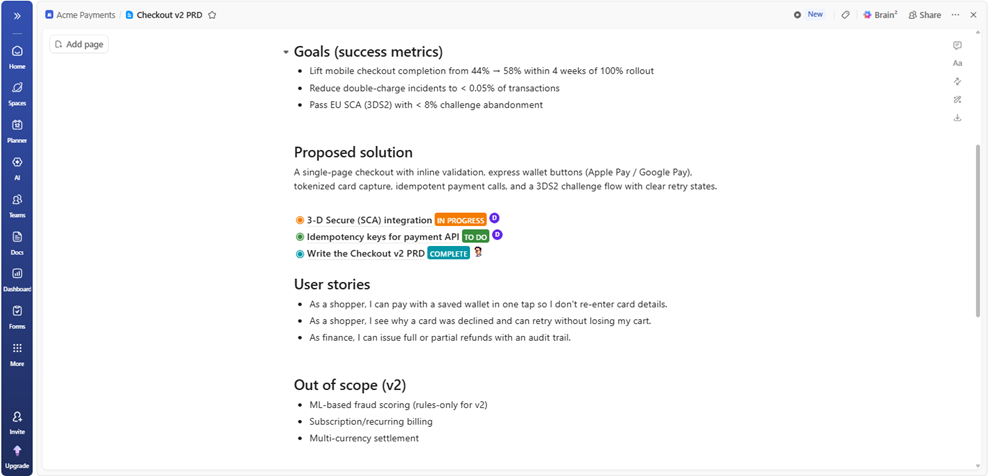
Do it in both directions. From a task, you can attach the Doc under relationships or drop the doc link in the description, so an engineer opening the ticket lands on the spec in one click. The payoff: a reviewer skimming the PRD can see, inline, that “3-D Secure” is in progress while “Idempotency keys” is still to-do — no status meeting required.
Draft the first pass with ClickUp Brain
Skip the blank page. Dump your kickoff notes into a doc, then open ClickUp Brain and ask it to draft the PRD from those notes using your section headings — the advantage over a standalone chatbot is that Brain reads the linked notes and tasks directly, so you are not pasting context in. Keep one guardrail in the prompt: tell it to flag anything ambiguous as an open question instead of inventing an answer.
I keep the exact wording I use in ClickUp Brain Prompts for Product Managers — the first one is a PRD-from-notes prompt. The rule that never changes, after thirty years in product: AI drafts, the human decides. Brain gets you a fast first pass; you supply the customer judgment it cannot.
Keep it current through delivery
A PRD earns its keep after kickoff, not at it. Because the tasks are linked, most updates take care of themselves — but three habits keep the doc trustworthy for the whole build. Resolve open questions in the doc with inline comments so the decision and its reasoning stay attached to the requirement. When scope changes, edit the requirement and let the linked task follow, rather than the reverse. And treat the Doc as the single source of truth in reviews — if a discussion happens in chat, fold the outcome back into the PRD so there is exactly one place to look.
Share it without losing control
A PRD only helps if the right people can read it — and only stays trustworthy if the wrong people can’t quietly rewrite it. In ClickUp Docs, use Share to grant access per person or team, invite a client as a guest with view-only rights, or generate a public link for a read-only version you can drop into an email or Slack. My default: keep edit rights with the product owner and give everyone else comment access. Feedback then lands as inline comments on the exact requirement instead of a scatter of replies you have to reconcile later.
For an executive who will never open ClickUp, the public link — or a quick Export to PDF — is enough to review from their inbox, while the canonical version still lives in the workspace next to the work. That is the whole point of a ClickUp PRD: one source of truth, shared as widely as you need, without spawning the copies that pull a spec out of sync.
The PRD prompts I actually paste — plus 15 more
| PRD from messy notes | Draft in minutes |
| Sprints & stakeholder comms | Same pack |
FAQ
Does ClickUp have a PRD template?
Yes — there are prebuilt PRD and product doc templates in the template gallery. But for a disciplined one-page PRD, a blank Doc with your own heading blocks is cleaner and easier to keep short. Save your version as a template once it works.
Can ClickUp Brain write the PRD for me?
It can write a solid first draft from your notes, and because it reads your workspace it needs less hand-holding than a standalone chatbot. It cannot make the product calls — decide the trade-offs and edit before anyone relies on it.
How do I link tasks to a ClickUp PRD?
Inside the Doc, type /task and pick Mention a Task to embed a live task chip under the requirement. From the task side, attach the Doc via relationships or the description so the link works both ways.
Do I need a paid plan?
No — ClickUp Docs and task mentions work on the free plan. ClickUp Brain (the AI drafting) runs on a paid plan, but you can trial it before deciding whether the PRD workflow earns the cost.

Founder, VetAI Works · 30 years in product & IT. Writes practitioner guides on AI for product managers.