

ClickUp Sprints are not on by default — and that trips up every PM who expects a sprint board the moment they open a list. Sprints are a ClickApp you switch on, plus a Sprint Folder you configure once. Get that setup right and the rest of the cadence — planning, the board, the burndown — falls into place. This is the practical how-to for running sprints in ClickUp, from a product manager who has run a lot of them.
Scope note so you are in the right place: this is about setting up and running the sprint mechanically in ClickUp. For turning the end of a sprint into real improvement, see Sprint Retrospectives with AI; for sizing the work before it goes in, see estimating with AI.
Disclosure: some links below are affiliate links. If you start a paid ClickUp plan through them, VetAI Works may earn a commission at no extra cost to you. I only recommend tools I would set up myself.
Sprints work on ClickUp’s free-forever plan — you can build the whole cadence below before paying for anything.
Try ClickUp free →Turn on the Sprints ClickApp
Everything starts in Space settings → ClickApps → Sprints. Toggle it on for the space where your delivery lives. This unlocks a Sprint Folder and three decisions you set once: the sprint duration (I default to two weeks), the start day (match your team’s cadence — usually Monday), and the measure of effort — Sprint Points or time estimates. Pick points if your team estimates in story points; leave it off only if you truly track nothing.
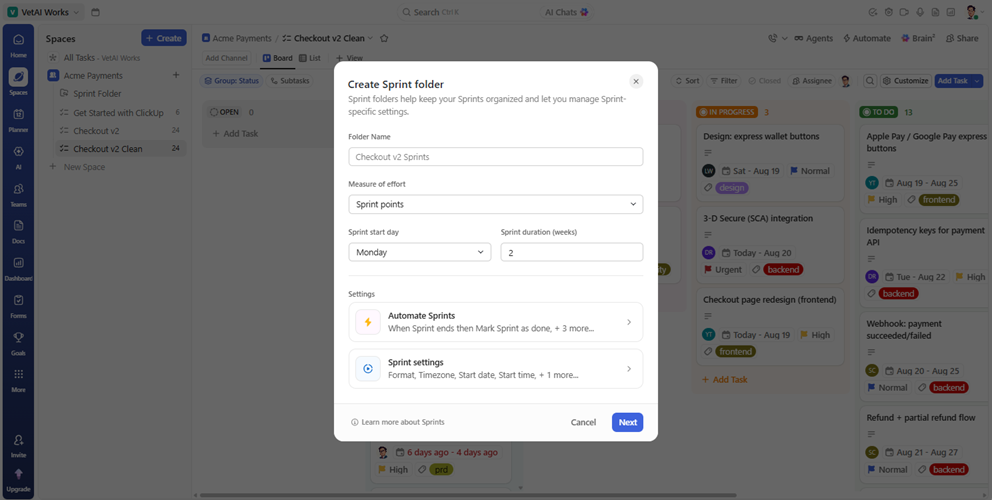
One setting saves you weekly pain: enable automatic sprint creation so ClickUp rolls the next sprint for you on schedule, and turn on carrying unfinished work forward so anything not done drops into the next sprint instead of vanishing. If you skip effort tracking here, the sprint header will read “0 pts / not estimated” — harmless, but you lose the burndown, so most teams should turn points on.
Build the sprint board
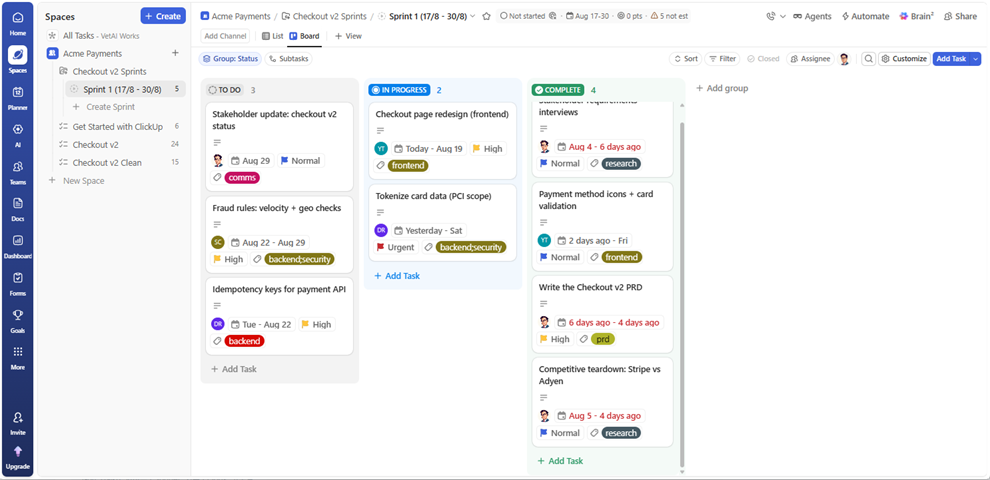
Each sprint is a list inside the Sprint Folder, and its Board view is where the team lives during the two weeks. Group the board by Status so columns read the way work actually flows — To Do, In Progress, In Review, Complete — and keep the count of statuses small enough to fit on one screen. Every card should carry an assignee, a priority, and, if you enabled it, points, so a glance tells you who owns what and how loaded the sprint is.
Plan the sprint
Planning is just moving the right work from the backlog into the sprint — deliberately, not hopefully. From your backlog list, multi-select the tasks you are committing to (checkbox each, or shift-click a range) and use Move to drop them into the current sprint in one action; dragging one card at a time is the slow way. As you add them, watch the points total in the sprint header against your team’s known velocity. If the number runs past what the team finished last sprint, something has to come back out — that is the whole discipline.
Size the work before you commit it. Rough points are fine, but they should reflect real effort, not optimism — the fastest way to get honest numbers is to estimate with a three-point method and let the range surface the risky items. A sprint planned on wishful estimates fails in week two no matter how clean the board looks.
Run it day to day
Once the sprint is live, the board runs standup: filter to a person or sort by status and the “what did you do, what’s next, what’s blocked” answers itself. Two ClickUp views earn their keep here. The burndown chart (a Sprint widget on a dashboard) shows whether remaining points are tracking toward zero or flat-lining — a flat line mid-sprint means scope or a blocker you need to act on now. And a blocked filter or a “Blocked” status makes stuck work impossible to hide. Keep the sprint scope frozen: new requests go to the backlog for next sprint, not into the one in flight.
Map the four ceremonies to ClickUp views
You do not need a separate app for each Scrum ceremony — each one is just a ClickUp view you already have, pointed at the right question. Set these up once and the cadence runs itself.
| Ceremony | ClickUp view | What you’re looking at |
|---|---|---|
| Planning | Backlog List + sprint List | Multi-select into the sprint; points vs. velocity |
| Daily standup | Board grouped by status, filter by assignee | In progress, blocked, what’s next per person |
| Sprint review | Board “Complete” column or a Shipped filter | What actually got done, ready to demo |
| Retrospective | Whiteboard or Doc (see the retro guide) | Themes and owned actions, not venting |
One capacity habit turns planning from guesswork into a number: before you commit, subtract the sprint’s real availability. If someone is out two of the ten days, their capacity is 80% — plan to it. ClickUp’s Workload view shows points or hours per person against a set capacity, so over-loading one engineer while another sits idle becomes visible before the sprint starts, not at the retro.
Mistakes that quietly break a sprint
A sprint board can look immaculate and still fail. After thirty years, these are the five that do the most damage — and each is a setup or habit you can fix in ClickUp today.
- No effort measure. Without points or estimates there is no burndown and no way to tell if you over-committed until it’s too late. Turn effort tracking on in the Sprint Folder.
- Committing to hope, not velocity. If the total exceeds what the team actually finished last sprint, you have planned a miss. Let the header total argue with you.
- Scope creep mid-sprint. Every “quick add” after day one is a silent cut somewhere else. New work goes to the backlog for next sprint — protect the frozen scope.
- Orphan tasks. A card with no assignee or priority is work nobody owns. Make both non-negotiable on the board.
- Ignoring carryover. If the same task slips three sprints running, the estimate or the scope is wrong — split it, don’t re-carry it.
Let ClickUp Brain do the busywork
The reporting around a sprint is exactly the kind of repetitive writing AI should own. Open ClickUp Brain on the sprint list and ask it to roll up status into shipped / at risk / next, or to draft the stakeholder update from the tasks that changed this week — because Brain reads the sprint directly, you are not pasting anything in. The wording I actually use is in ClickUp Brain prompts for PMs. My rule holds after thirty years: AI drafts, the human decides — Brain gets the summary out, you catch the caveat it dropped.
Sprint planning & status prompts I actually paste
| Sprint status roll-up | Shipped / at risk / next |
| PRDs & stakeholder comms | Same pack |
FAQ
How do I turn on sprints in ClickUp?
Go to Space settings → ClickApps → Sprints and toggle it on for the space. That creates a Sprint Folder where you set duration, start day, and whether you track Sprint Points or time estimates.
Do ClickUp Sprints work on the free plan?
Yes — the Sprints ClickApp, sprint lists, and the board are available on the free-forever plan. Advanced dashboard widgets and some automations come with paid tiers, but you can run a full sprint cadence for free.
What’s the difference between a sprint and a regular list?
A sprint is a time-boxed list with a start and end date, effort tracking, and a burndown. Unfinished work can auto-carry to the next sprint. A regular list has none of that cadence built in.
Why does my sprint show “0 pts / not estimated”?
The Sprint Points effort measure isn’t enabled, or tasks have no points. Turn on points in the Sprint Folder settings and add a value to each task, and the header will sum to a real total and the burndown will work.

Founder, VetAI Works · 30 years in product & IT. Writes practitioner guides on AI for product managers.